🔄 Import & Sync To Folio
Sync from Pocket (Sign In)
Bring your saved articles with you. Simply connect your Pocket account to seamlessly transfer all your content to Folio.
How to Sync Your Pocket Articles to Folio
Tip
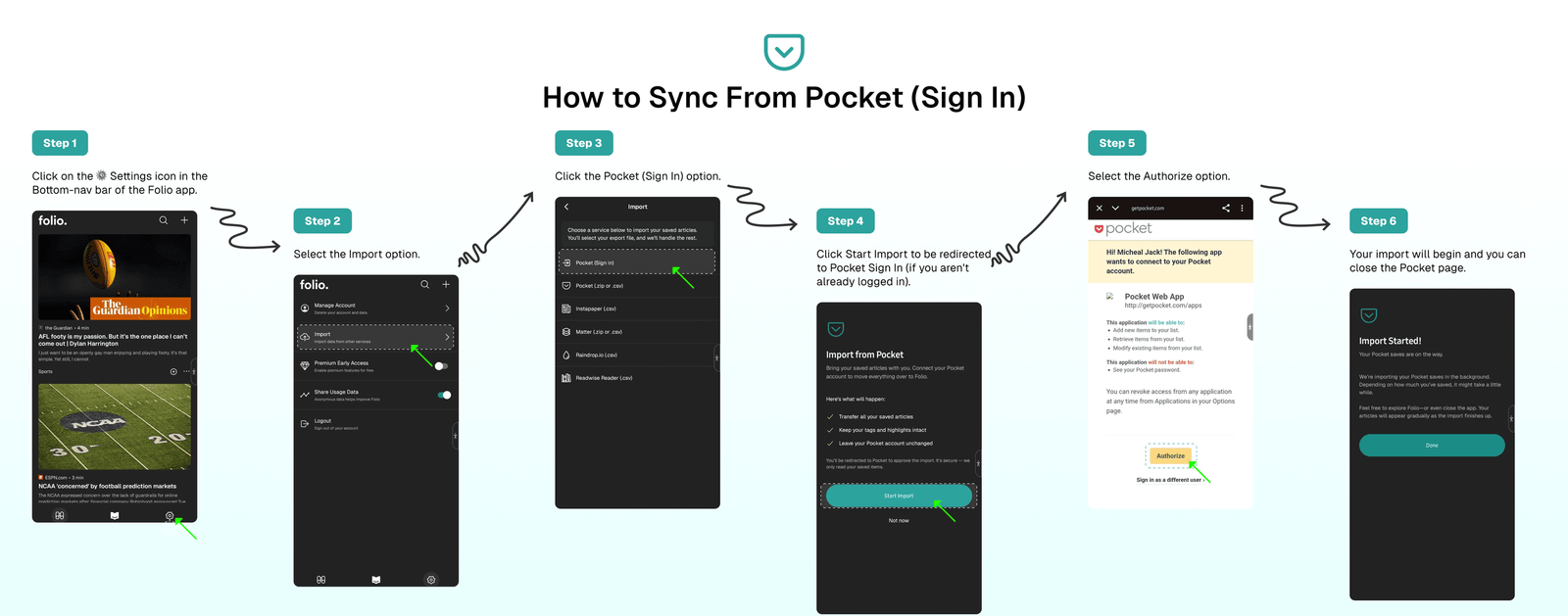
Your Pocket saves are being imported in the background. This may take some time depending on how many articles you've saved. Feel free to explore Folio or even close the app—your articles will gradually appear as the import completes.
The process is simple:
- Click on the
⚙️ Settingsicon in the Bottom-nav bar of the Folio app. - Select the
Importoption. - Click the
Pocket (Sign In)option. - Click
Start Importto be redirected to Pocket Sign In (if you aren't already logged in). - Select the
Authorizeoption. - Your import will begin and you can close the Pocket page.
⁉️ FAQs
Last updated on