🔄 Import & Sync To Folio
Import from Readwise Reader (.CSV)
Learn how to export your saved content from Readwise Reader as a CSV file and import it into your Folio account.
Export from Readwise Reader
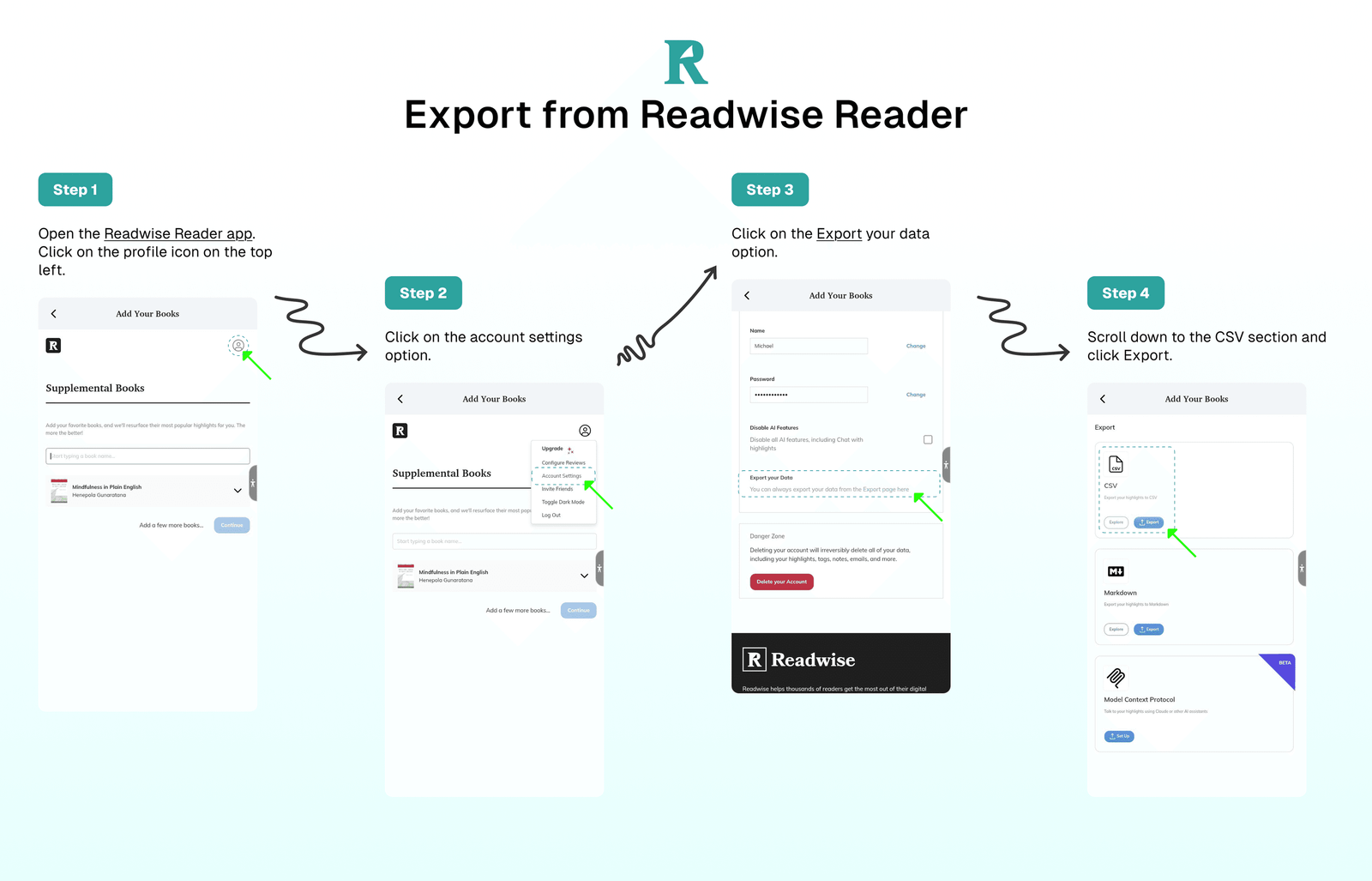
To export your saved content from Readwise Reader, follow these steps:
- Open the Readwise Reader app.
- Click on the
Exportoption or use this direct link: https://readwise.io/export - Scroll down to the
CSVsection and clickExport.
Import to Folio
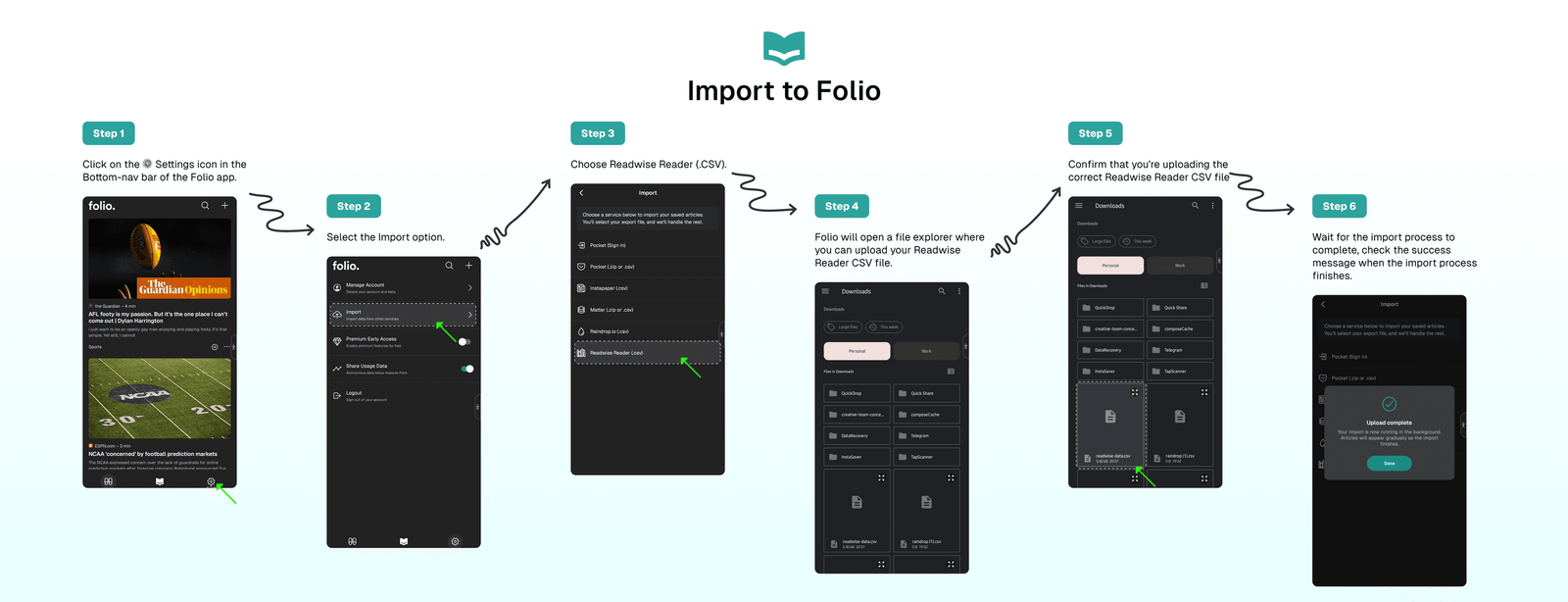
Once you've downloaded the Readwise Reader CSV file, follow these steps to import your bookmarks into Fol io:
- Click the
⚙️ Settingsicon in the Folio app's bottom navigation bar. - Select the
Importoption from the Settings page. - Choose
Readwise Reader (.CSV). - Folio will open a file explorer where you can upload your
Readwise Reader CSVfile. - Confirm that you're uploading the correct Instapaper CSV file.
- Wait for the import process to complete.
- Check the success message when the import process finishes.
⁉️ FAQs
Last updated on