Import from Pocket (.CSV)
Learn how to export your saves from Pocket as a CSV file and import them into your Folio account.
Export from Pocket
Important Notice
Pocket services have shut down on July 8, 2025. Pocket integration with desktop Firefox was removed in Firefox version 140 and in Firefox ESR (Extended Support Release) versions 115 and 128. You can export your saved items until October 8, 2025, before they are permanently deleted. To learn more, see this article.
Before exporting your data, ensure your Pocket or Mozilla account has a valid, active email address. Your export file will be sent to this email.
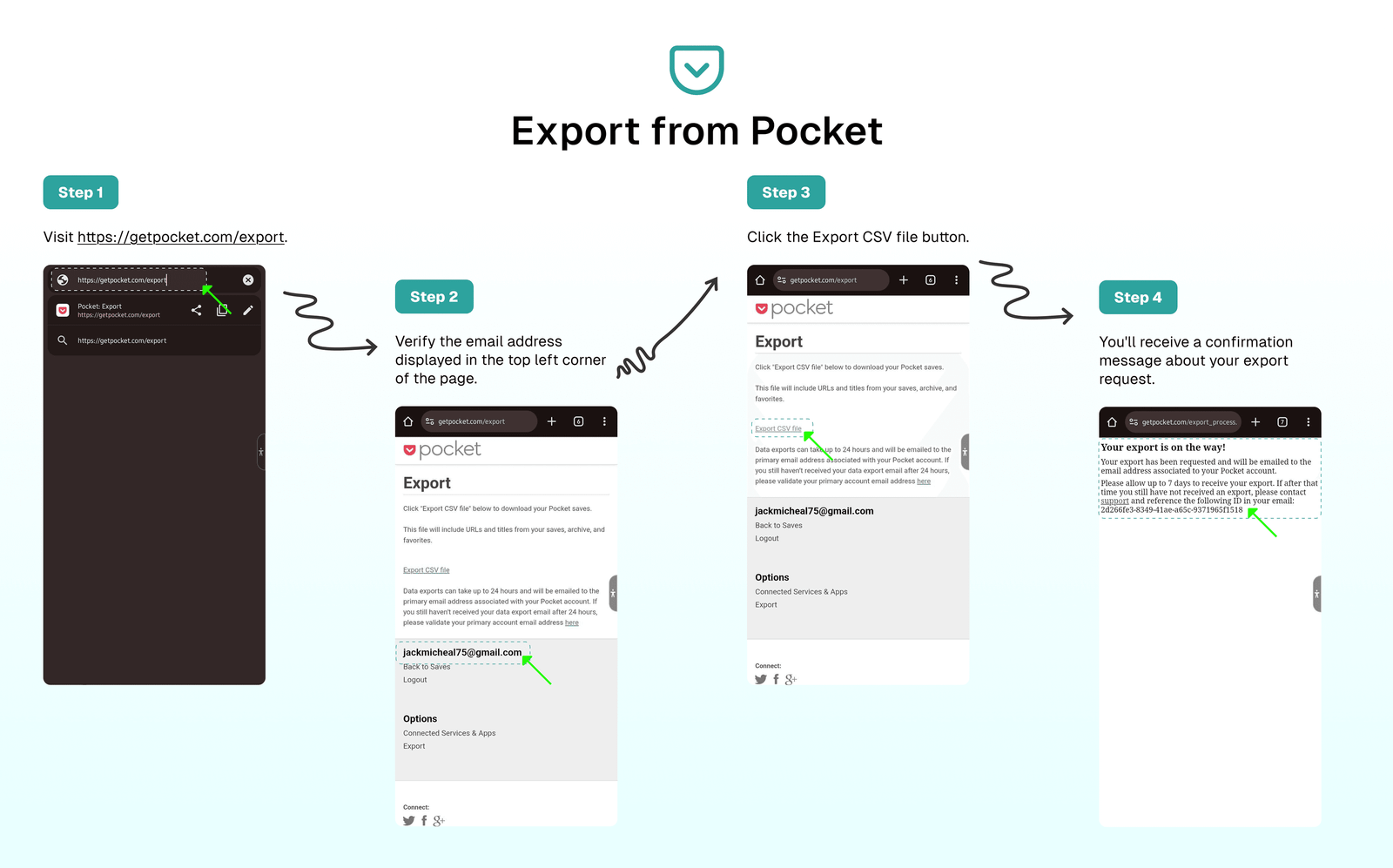
To export your saved items from Pocket as a CSV file, follow these steps:
- Visit https://getpocket.com/export.
- Verify the email address displayed in the top left corner of the page. If your email is incorrect or inaccessible, update it before requesting your export.
- Click the
Export CSV filebutton. - You'll receive a confirmation message about your export request. The CSV file generation may take up to 24 hours before it's delivered to your email. If you don't receive it within 24 hours, check your spam or junk folder. For additional information, refer to this guide: https://support.mozilla.org/en-US/kb/exporting-your-pocket-list
Import to Folio
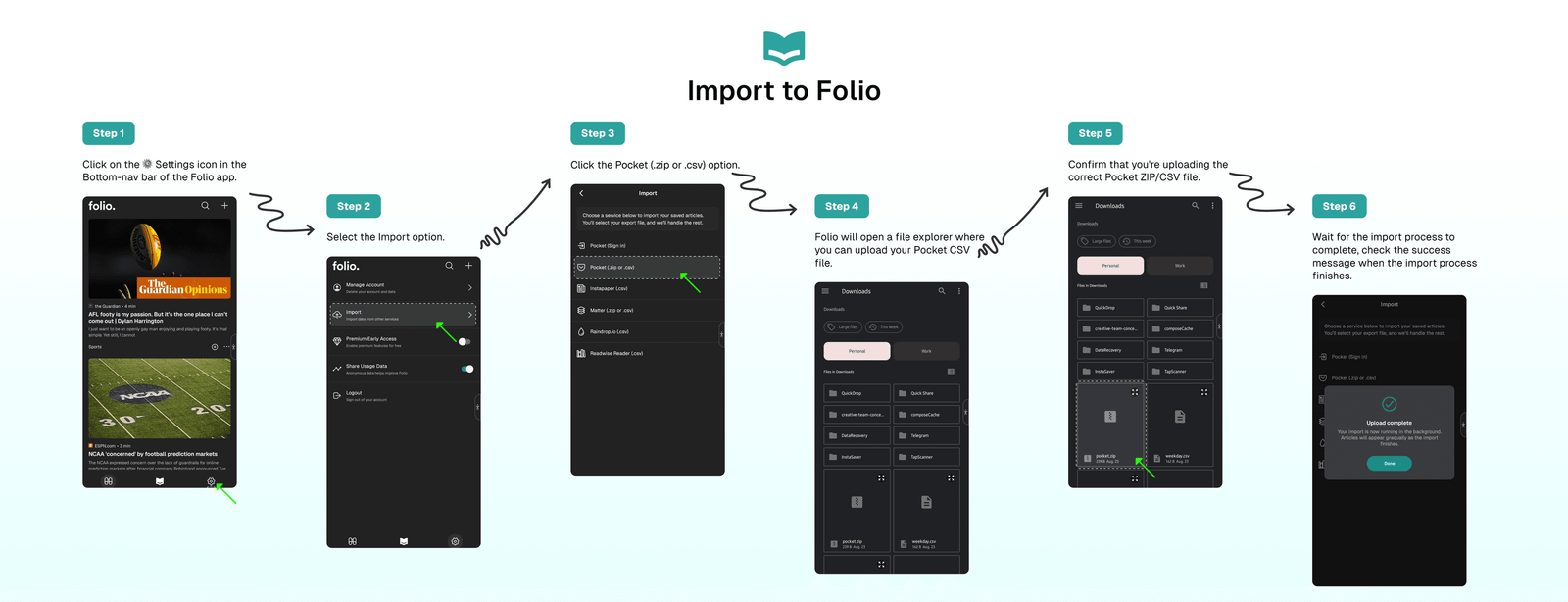
Once you've received the Pocket CSV file in your email, follow these steps to import your Pocket saves to Folio:
- Click the
⚙️ Settingsicon in the Folio app's bottom navigation bar. - Select the
Importoption from the Settings page. - Choose
Pocket (.ZIP or .CSV). - Folio will open a file explorer where you can upload your
Pocket CSVfile. - Confirm that you're uploading the correct Pocket CSV file.
- Wait for the import process to complete.
- Check the success message when the import process finishes.
⁉️ FAQs
Last updated on