🔄 Import & Sync To Folio
Import from Instapaper (.CSV)
Learn how to export your saved articles from Instapaper as a CSV file and import them into your Folio account.
Export from Instapaper
Tip
You will need to use the Instapaper web app to access the export option. The iOS and Android apps do not support this feature.
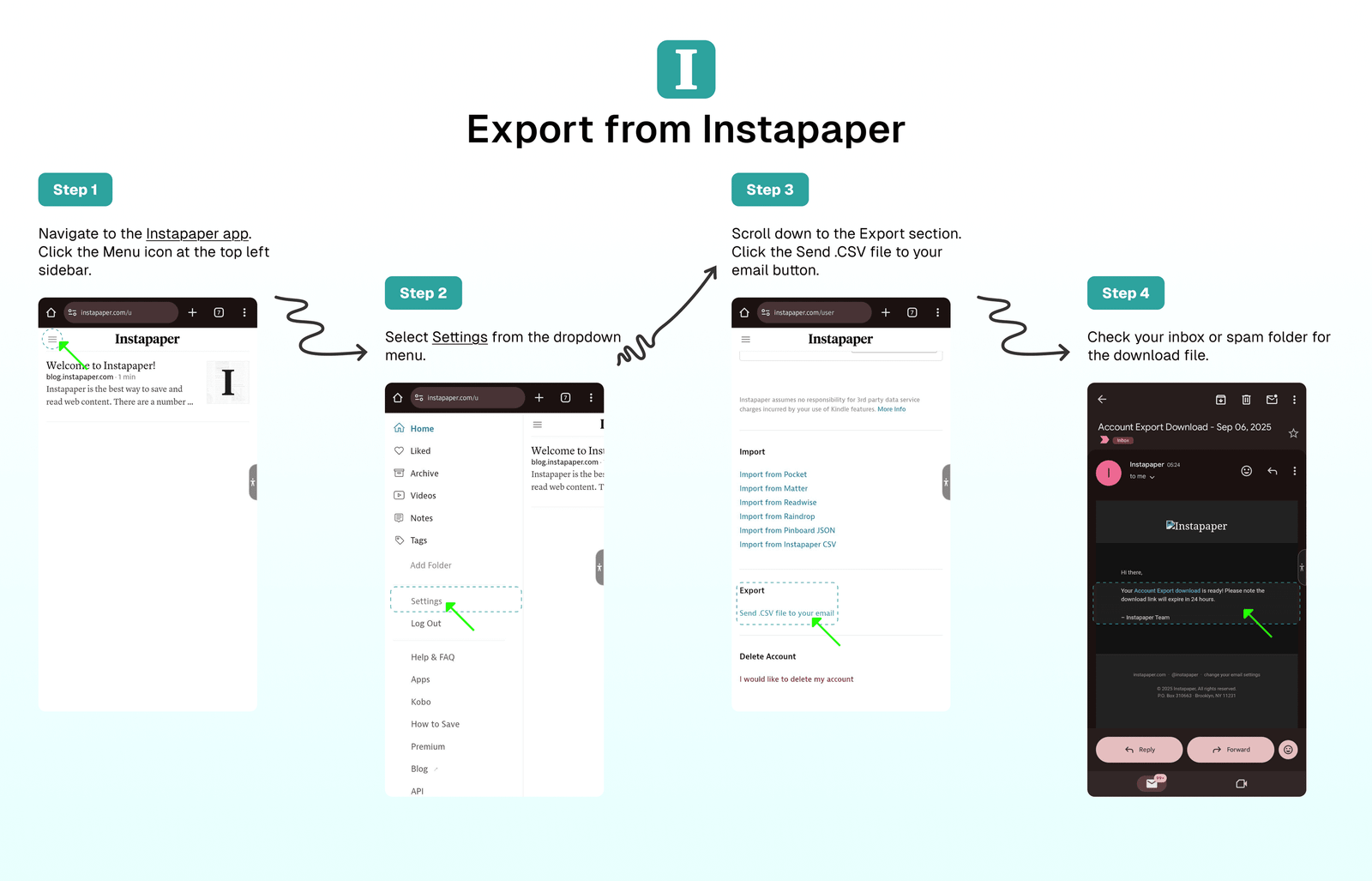
To export all saved articles from Instapaper:
- Navigate to the Instapaper app.
- Click on your email address in the top-right corner of the Instapaper header.
- Select
Settingsfrom the dropdown menu. - Scroll down to the
Exportsection. - Click the
Send .CSV file to your emailbutton. - Check your inbox or spam folder to download the file.
Import to Folio
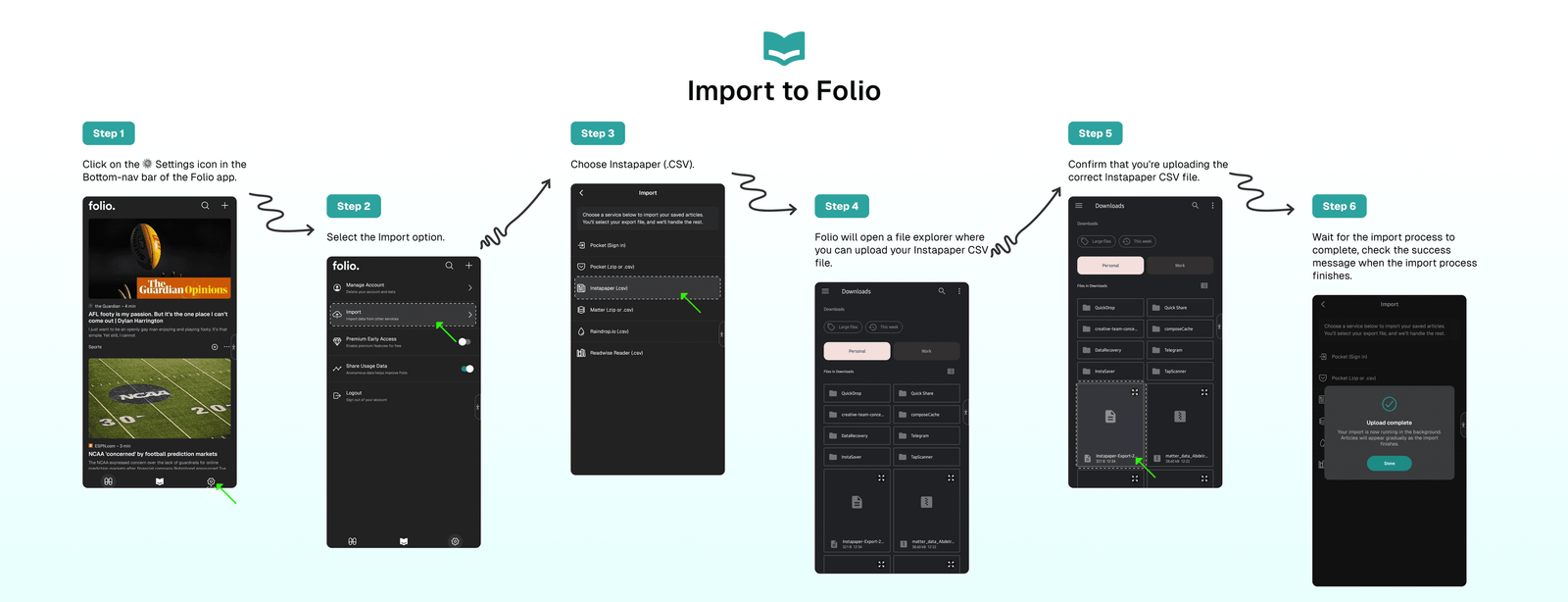
Once you've received the Instapaper CSV file in your email, follow these steps to import your Instapaper saves to Folio:
- Click the
⚙️ Settingsicon in the Folio app's bottom navigation bar. - Select the
Importoption from the Settings page. - Choose
Instapaper (.CSV). - Folio will open a file explorer where you can upload your
Instapaper CSVfile. - Confirm that you're uploading the correct Instapaper CSV file.
- Wait for the import process to complete.
- Check the success message when the import process finishes.
⁉️ FAQs
Last updated on