🔄 Import & Sync To Folio
Import from Raindrop.io (.CSV)
Discover how to export your saved content from Raindrop.oi and import it seamlessly into your Folio account.
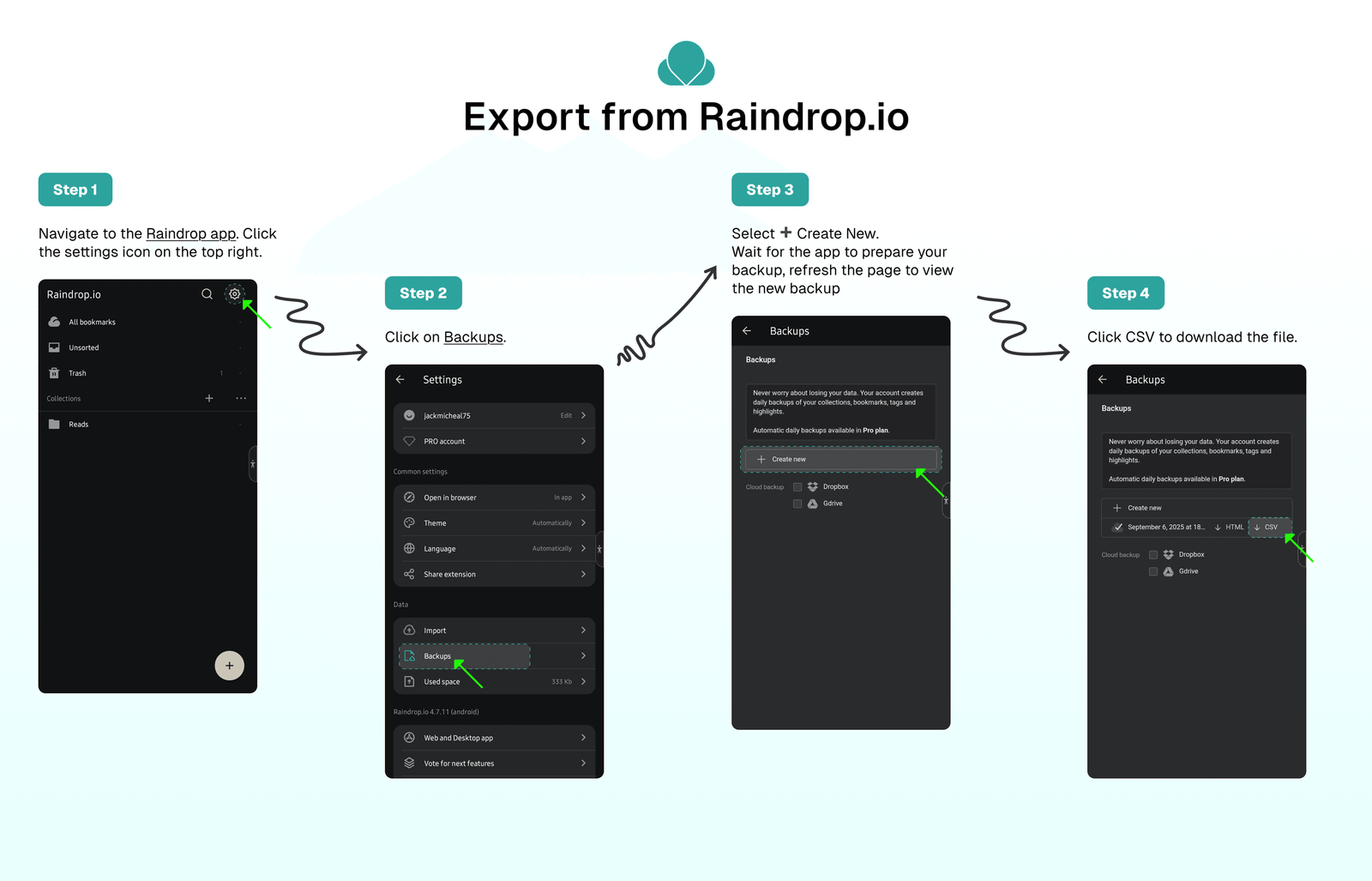
Export from Raindrop.io
To export your content from Raindrop as a CSV file:
- Navigate to the Raindrop app.
- Click your email address at the top left of the Raindrop sidebar.
- Select the
⚙️ Settingsoption. - Click on
Backups. - Select
➕ Create New. - Wait for the app to prepare your backup.
- Refresh the page to view the new backup.
- Click
CSVto download the file.
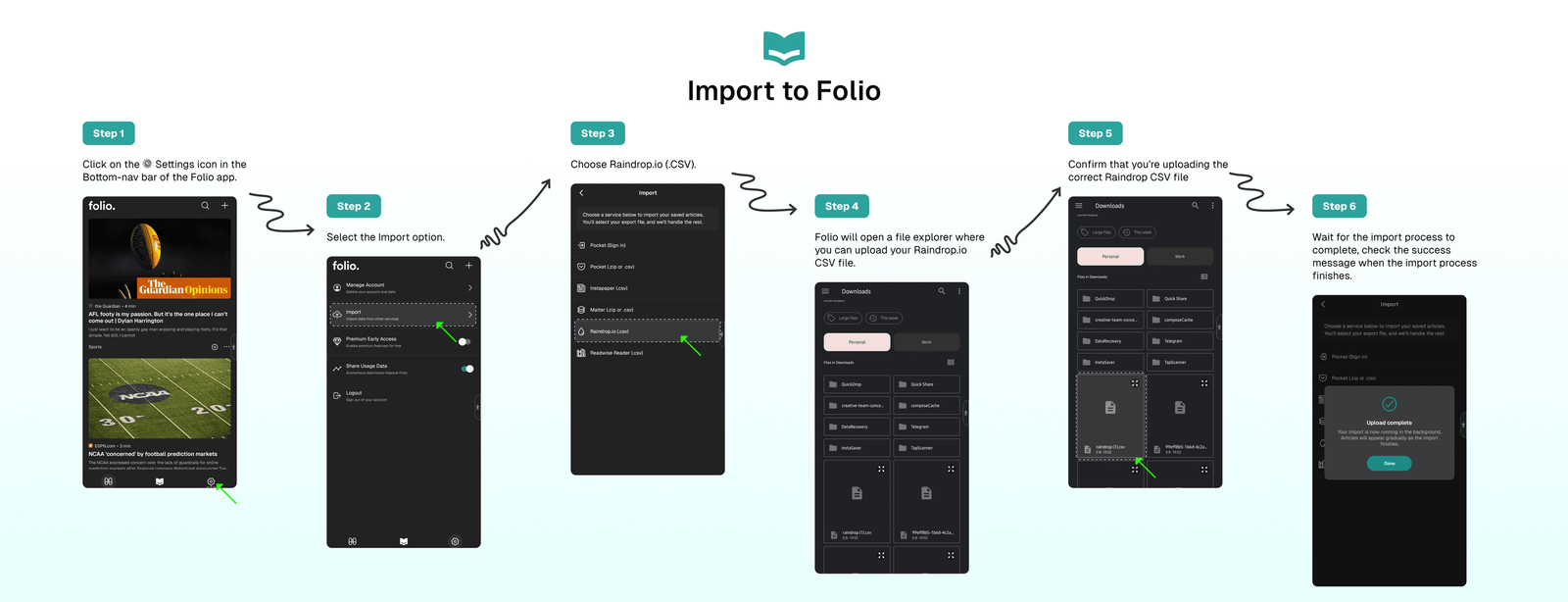
Import to Folio
Once you've downloaded the Raindrop CSV file, follow these steps to import your bookmarks into Folio:
- Click the
⚙️ Settingsicon in the Folio app's bottom navigation bar. - Select the
Importoption from the Settings page. - Choose
Raindrop.io (.CSV). - Folio will open a file explorer where you can upload your
Raindrop.io CSVfile. - Confirm that you're uploading the correct Instapaper CSV file.
- Wait for the import process to complete.
- Check the success message when the import process finishes.
⁉️ FAQs
Last updated on