Folio Reader Tabs
Leverage the power of Folio Reader tabs to organize and manage all your content in one place. Folio Reader has tabs that allow you to focus on what you need to read more quickly and easily.
✨ All Tab
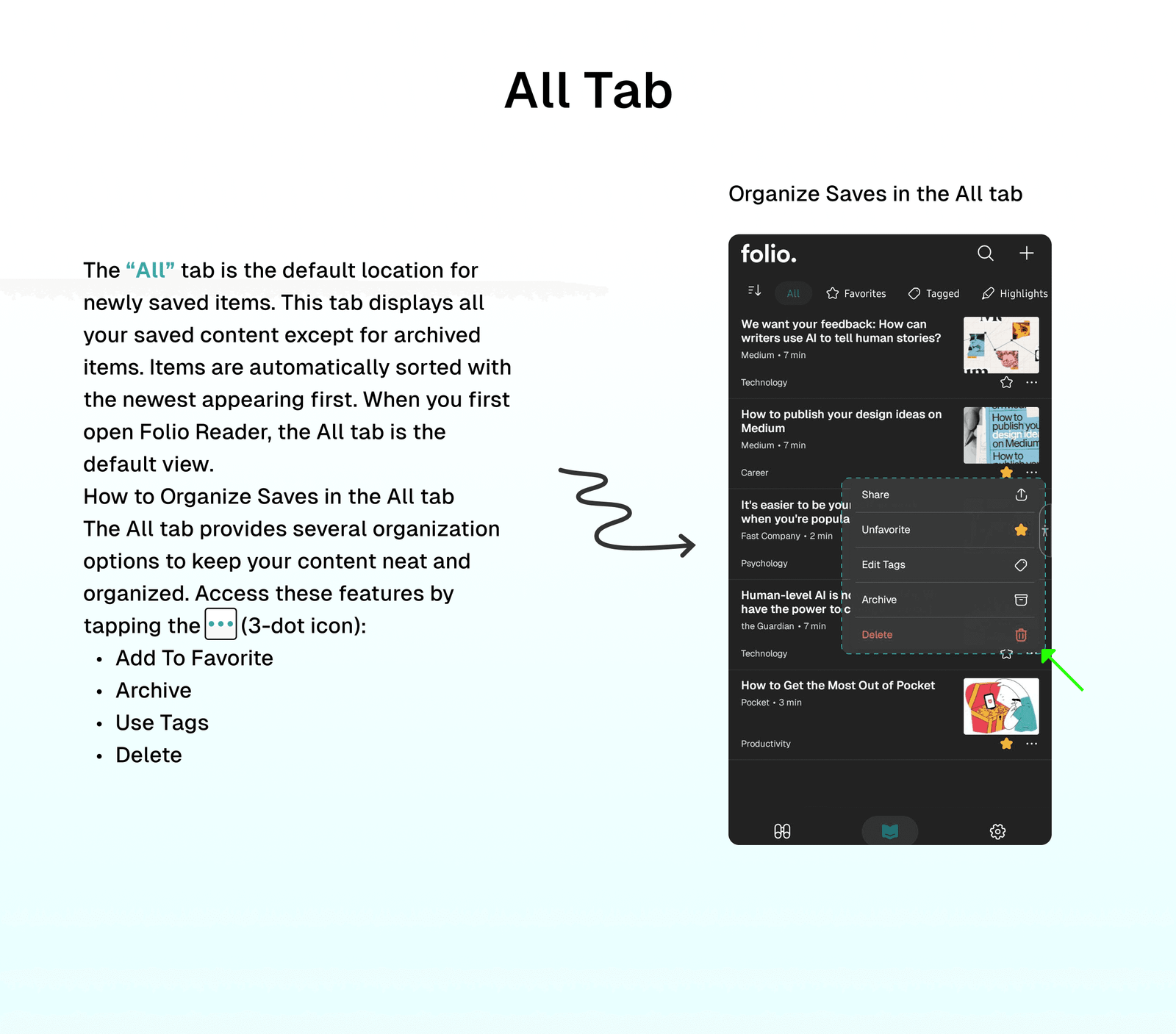
The All tab is the default location for newly saved items. This tab displays all your saved content except for archived items. Items are automatically sorted with the newest appearing first. When you first open Folio Reader, the All tab is the default view.
How to Organize Saves in the All tab
The All tab provides several organization options to keep your content neat and organized. Access these features by tapping the ... (3-dot icon):
- Add To Favorite
- Archive
- Use Tags
- Delete
⭐ Favorites Tab
Tip
Your Favorites tab contains all your favorite items, even those you've archived.
This tab displays all your saves marked as favorites, allowing quick access to them in one place. After reading, you can unfavorite saves or move them to the archive.
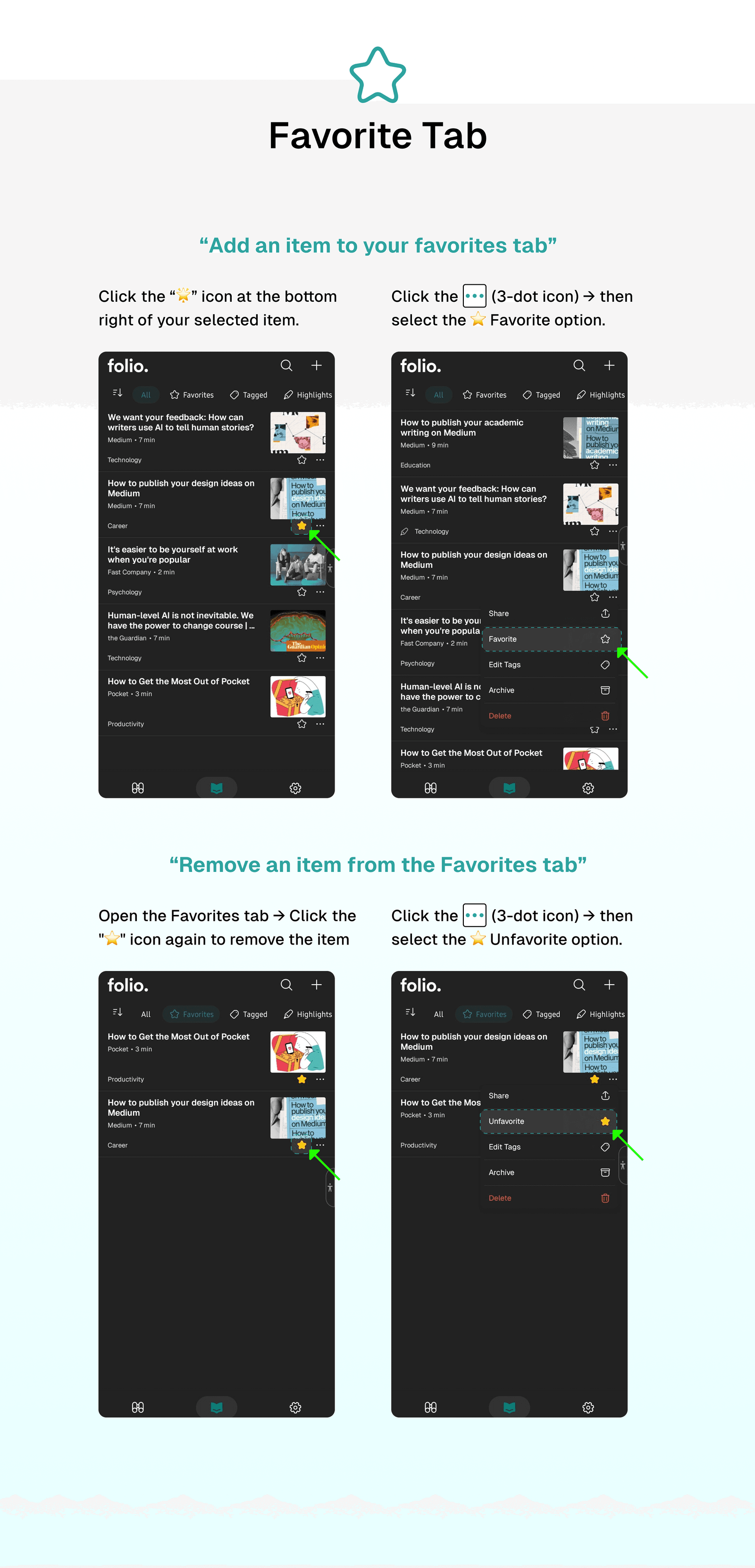
There are two ways to add an item to your Favorites tab:
- Click the “🌟” icon at the bottom right of your selected item.
- Click the
...(3-dot icon) → then select the⭐ Favoriteoption.
There are two ways to remove an item from the Favorites tab:
- Open the Favorites tab → Click the "⭐" icon again to remove the item.
- Open the Favorites tab → Click the
...(3-dot icon) → Select the⭐ Unfavoriteoption.
🏷️ Tagged Tab
Folio's tagging feature allows you to customize your saves by creating custom tags and easily access your content by selecting the tags you've created.
🏷️ How to Create Tags for Your Saves
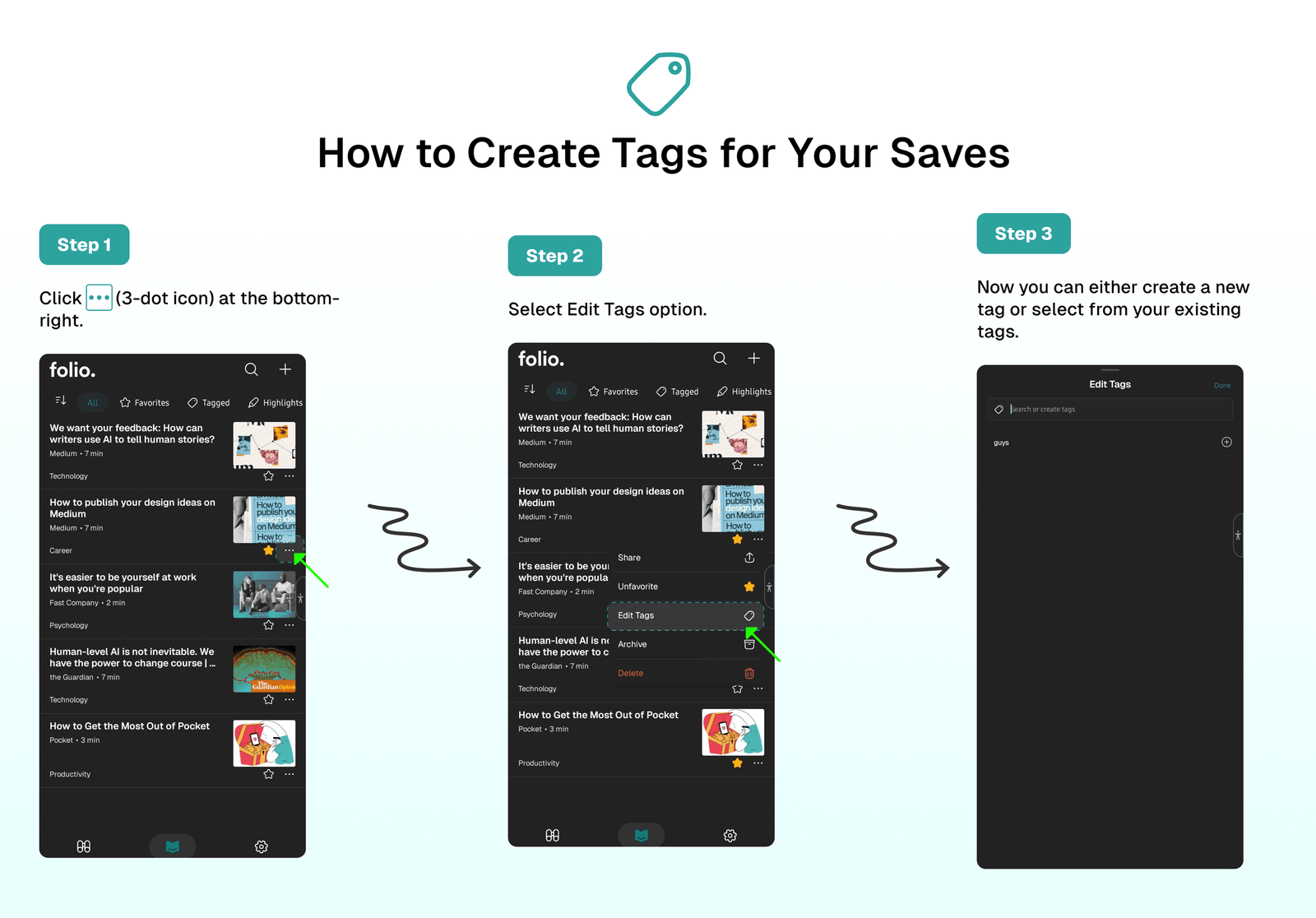
To create new custom tags for your selected save:
- Click on the
...icon for the selected item. - Select the
🏷️ Edit Tagsoption. - Now you can either create a new tag or select from your existing tags.
👀 How to View Saves with Your Custom Tags
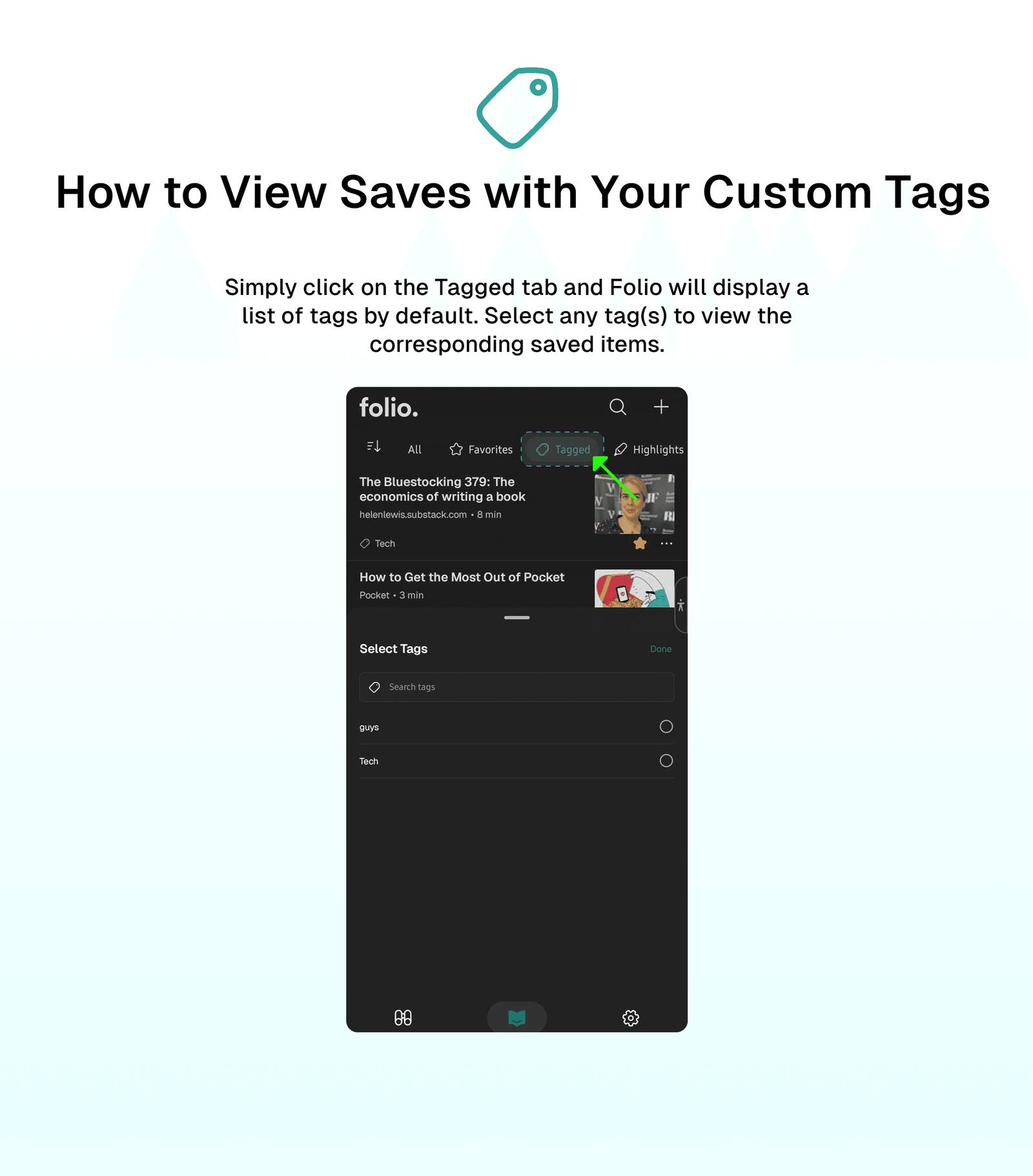
Simply click on the 🏷️ Tagged tab and Folio will display a list of tags by default. Select any tag(s) to view the corresponding saved items.
⚡ Highlights Tab
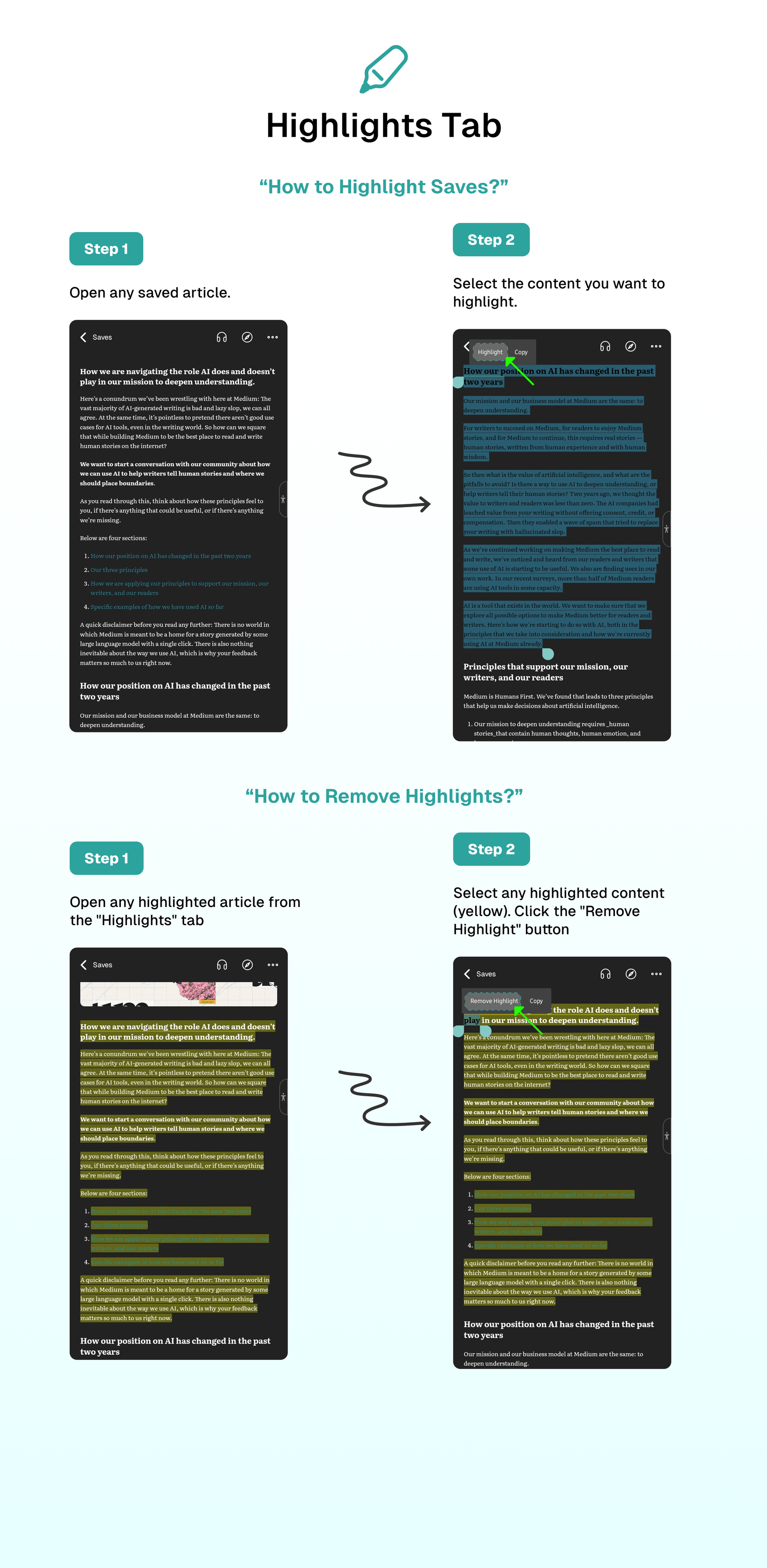
Under the Highlights tab, you can find all your highlighted saves displayed in one place for easy access. When opening any highlighted save, the app will automatically show the first highlighted content, allowing you to continue from where you left off while reading.
How to Highlight Saves?
- Open any saved article.
- Select the content you want to highlight.
- Click the “
Highlight" button (appears automatically after selecting content).
How to Remove Highlights?
- Open any highlighted article from the "Highlights" tab.
- Select any highlighted content (yellow).
- Click the "
Remove Highlight" button (appears automatically after selecting content).
🕑 Short Reads Tab
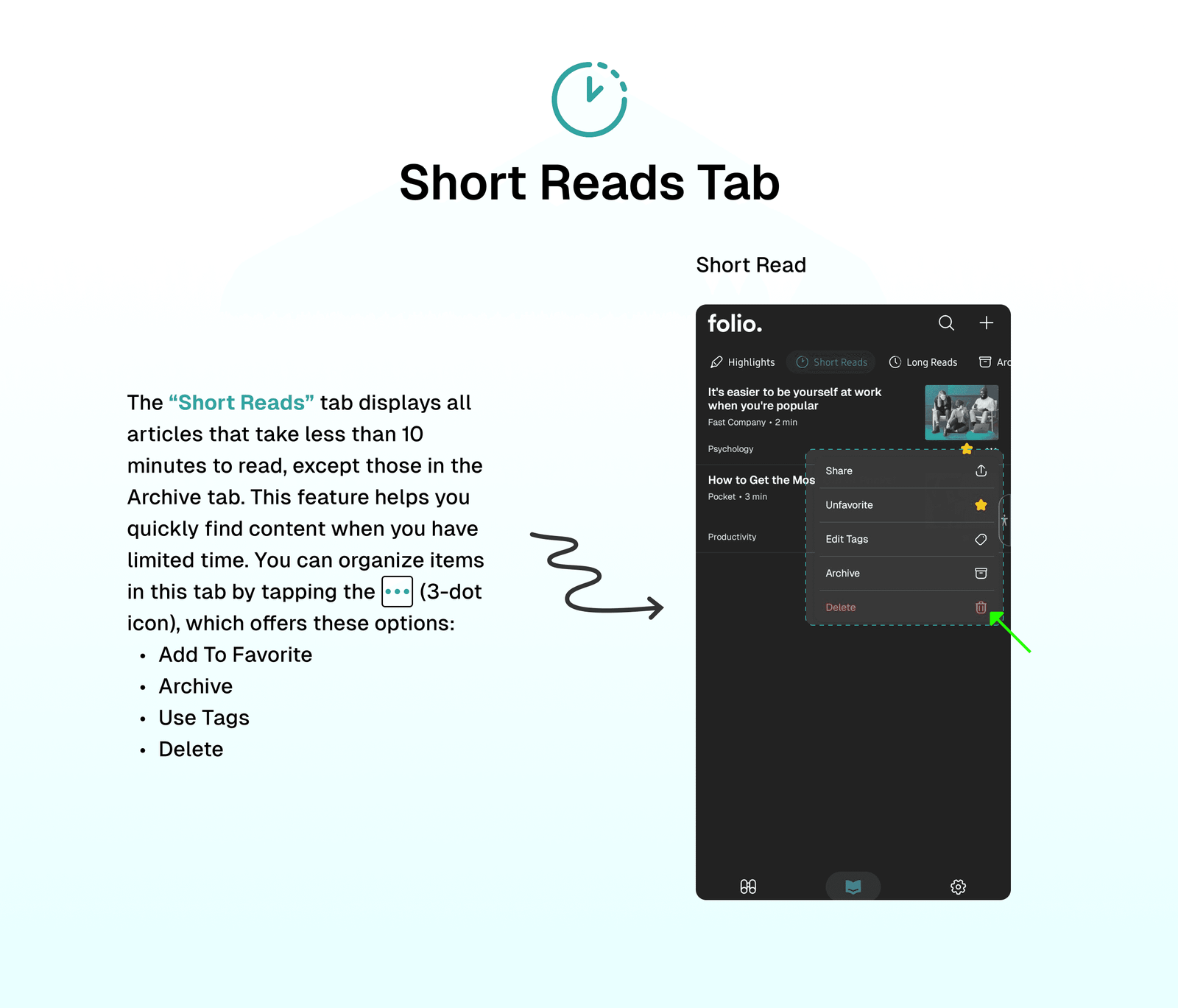
The Short Reads tab displays all articles that take less than 10 minutes to read, except those in the Archive tab. This feature helps you quickly find content when you have limited time. You can organize items in this tab by tapping the ... (3-dot icon), which offers these options:
- Add To Favorite
- Edit Tags
- Archive
- Delete
🕙 Long Reads Tab
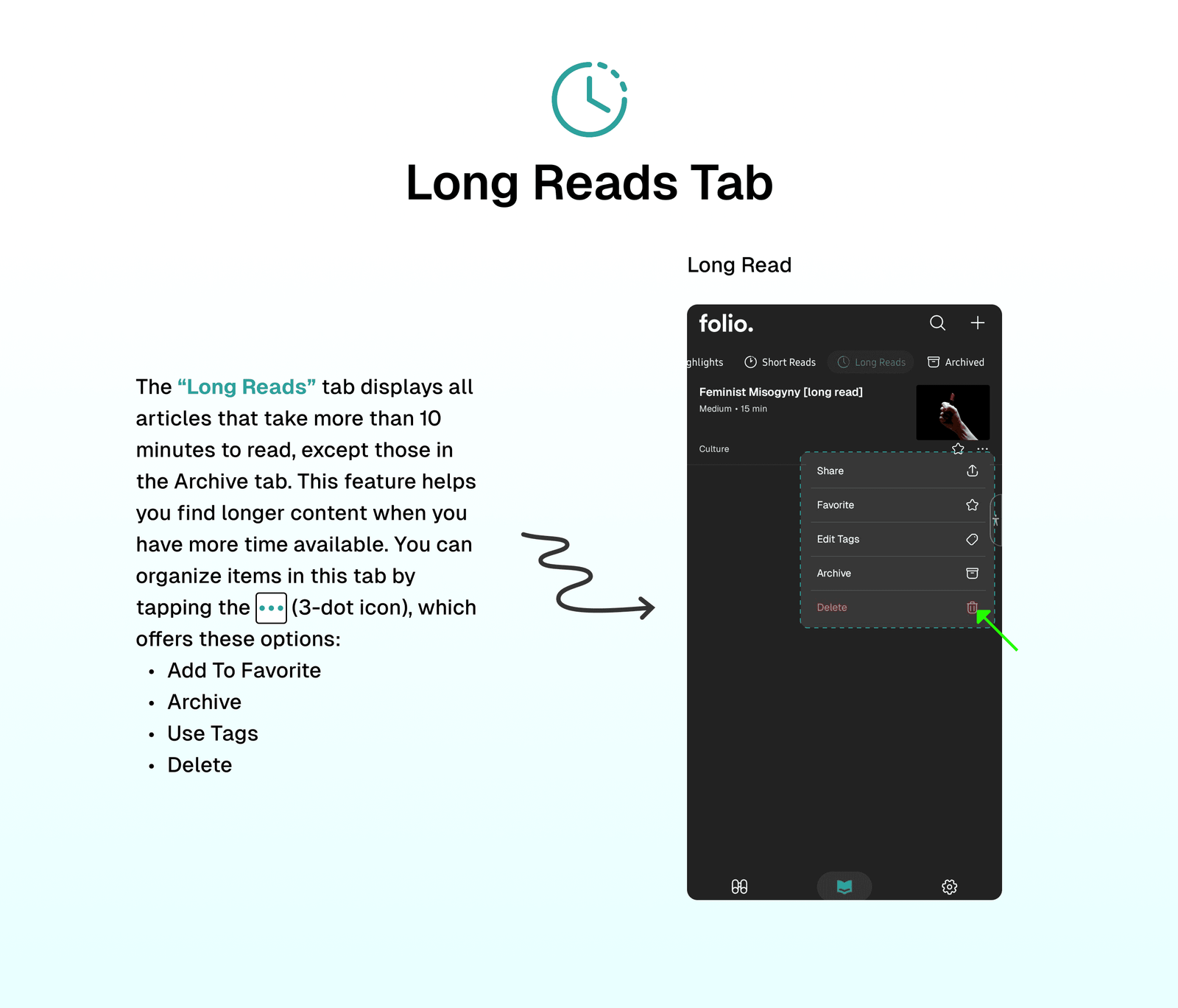
The Long Reads tab displays all articles that take more than 10 minutes to read, except those in the Archive tab. This feature helps you find longer content when you have more time available. You can organize items in this tab by tapping the ... (3-dot icon), which offers these options:
- Add To Favorite
- Edit Tags
- Archive
- Delete
🗑️ Archived Tab
Tip
Under the Archived tab, all your highlighted and tagged saves remain stored so when you unarchive them, every customization will be restored to its related tab 💯.
The Archived tab keeps your Reader clean and organized by storing articles you've marked as Archived.
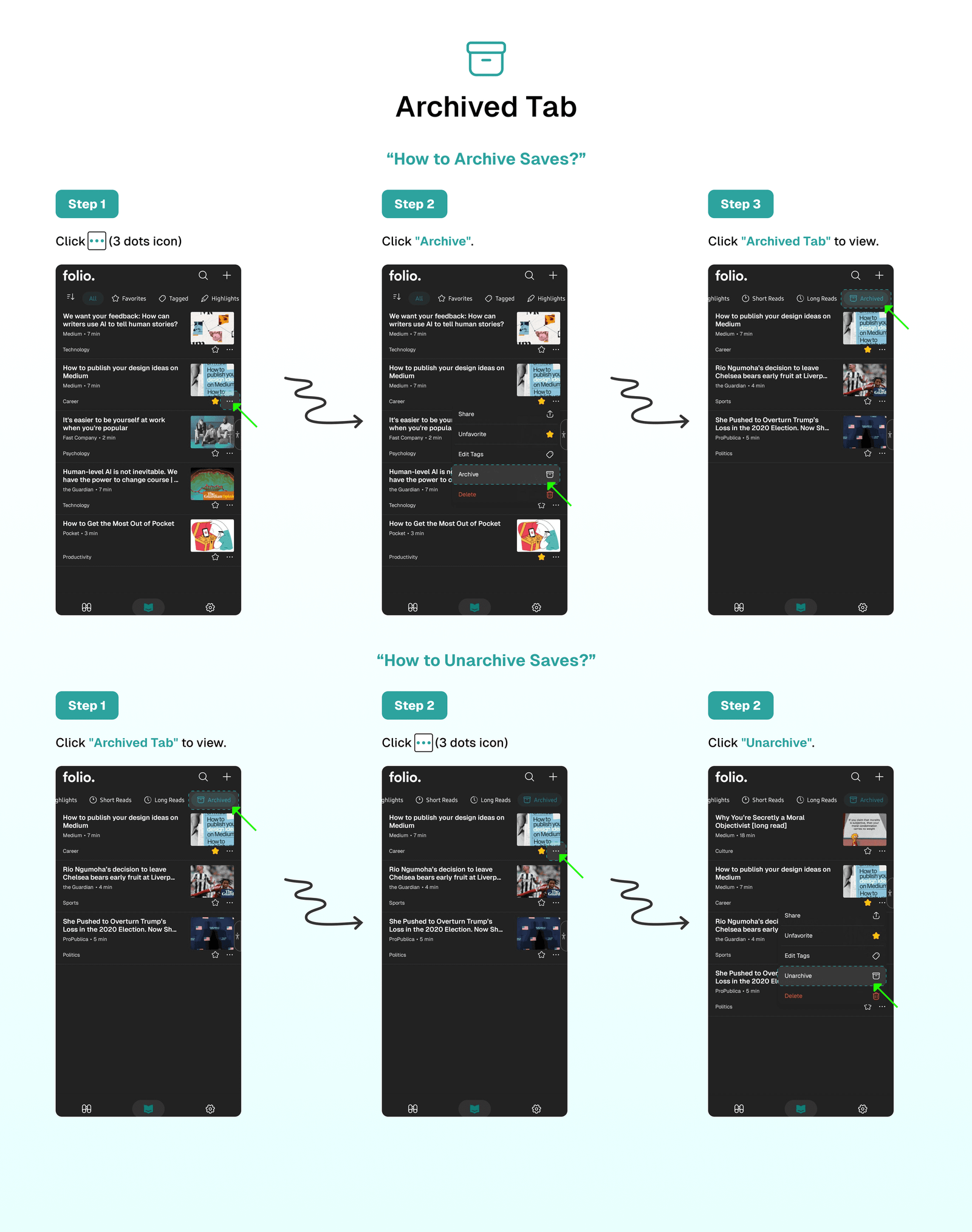
How to Archive Saves?
To archive any item:
- Select an item from any tab → Click the
...(3-dot icon) → Select theArchiveoption.
How to Unarchive Saves?
To unarchive any archived item:
- Open the
Archivedtab → Select any item → Click the...(3-dot icon) → Select theUnarchiveoption.
⁉️ FAQs
Last updated on
Listen to Your Saved Content
Use the powerful Listen to Your Saves feature from Folio Reader that allows you to listen to your content when you don't prefer to read 😃!
How to Add Your Saves To Favorites
Learn how to organize your saves by adding them to your favorites to easily access your preferred content and quickly return to important items.