📖 Folio Reader
Search on Your Saves
Folio offers comprehensive search capabilities that allow you to search not only by titles, URLs, and tags, but also through all content within your saved items 💯!
🔍 How to Search Through Your Saves
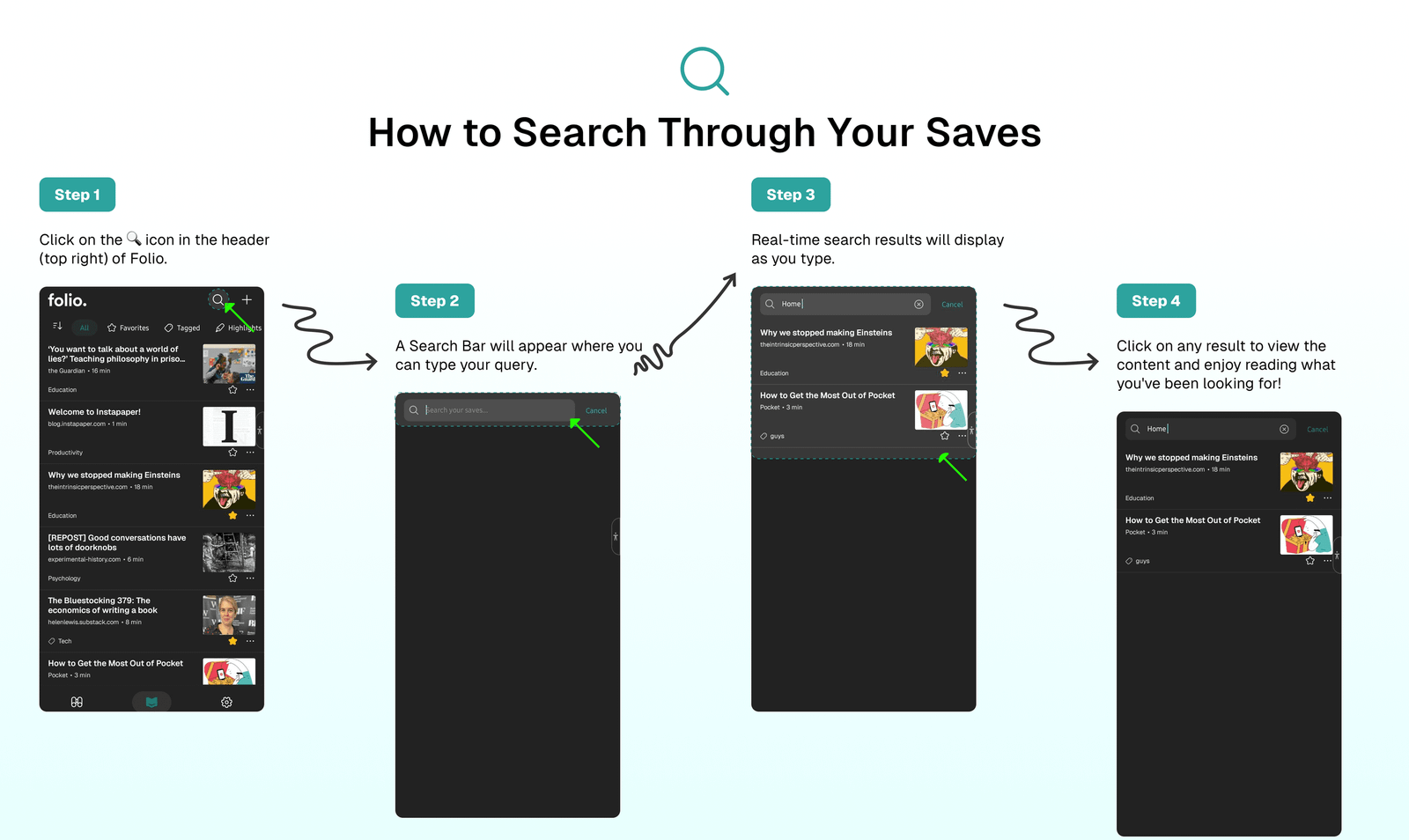
To search for any content within your Folio Reader saves:
- Click on the
🔍icon in the header (top right) of Folio. - A
🔍 Search Barwill appear where you can type your query. - Real-time search results will display as you type.
- Click on any result to view the content.
- Enjoy reading what you've been looking for!
✨ Premium Search Features
🗑️ Tip Activate Premium Early Access to enjoy Premium Search Features for free. Learn how to do this here: Premium Early Access
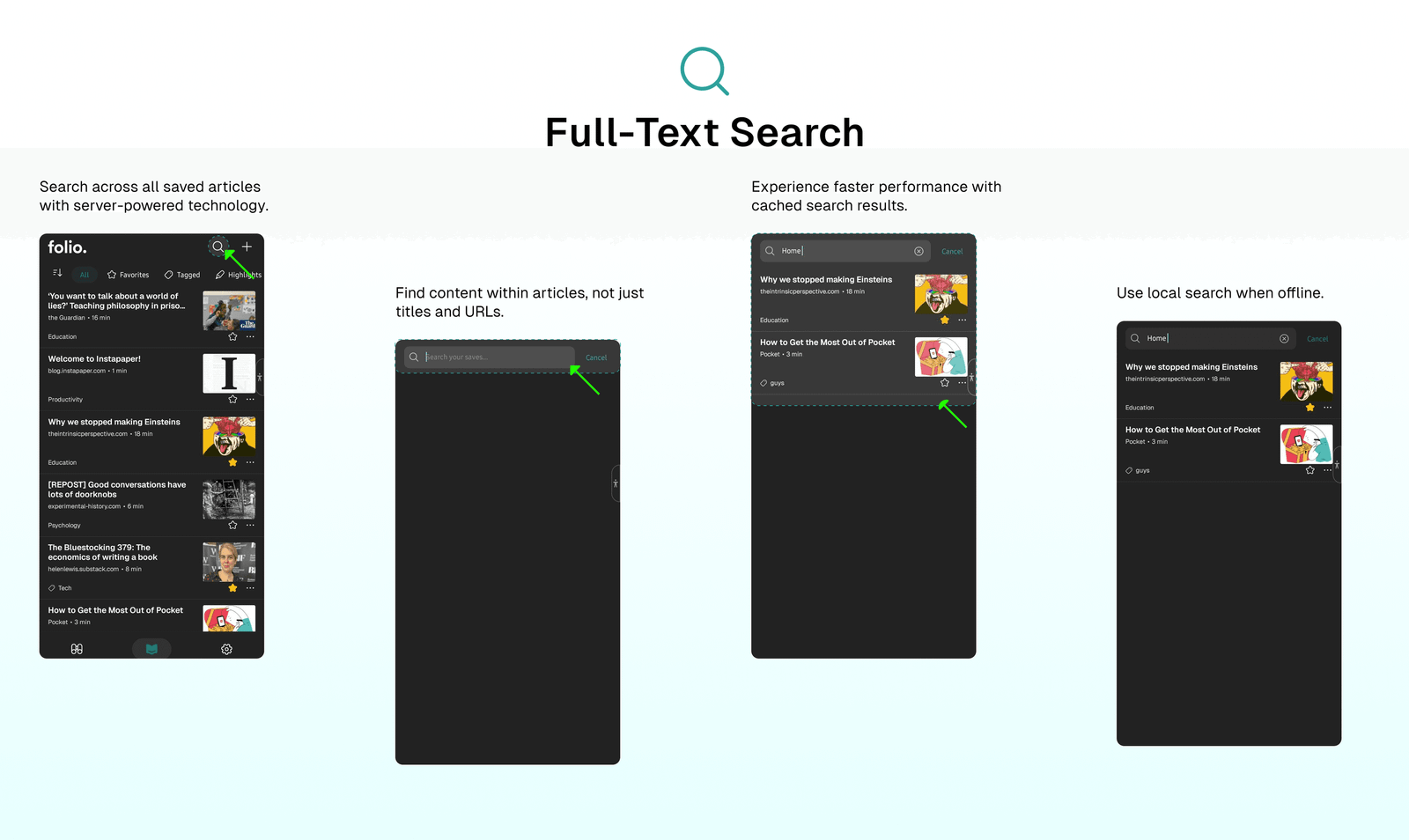
- Search across all saved articles with server-powered technology.
- Find content within articles, not just titles and URLs.
- Experience faster performance with cached search results.
- Use local search when offline.
⁉️ FAQs
Last updated on
How to Add Your Saves To Archive
Learn how to keep your Reader clean by adding read items to the archive. This stores all your customizations across all your items, including highlighted and tagged content.
How to Add or Edit Tags for Your Saves
Use the powerful Folio Tagging feature to customize your saves with custom tags to easily access and organize your items in your Folio Reader.