Import & Sync Your Saves
Get started quickly by importing all your content from Pocket, Instapaper, Matter, Raindrop.io, or Readwise Reader.
Sync From Pocket (Sign In)
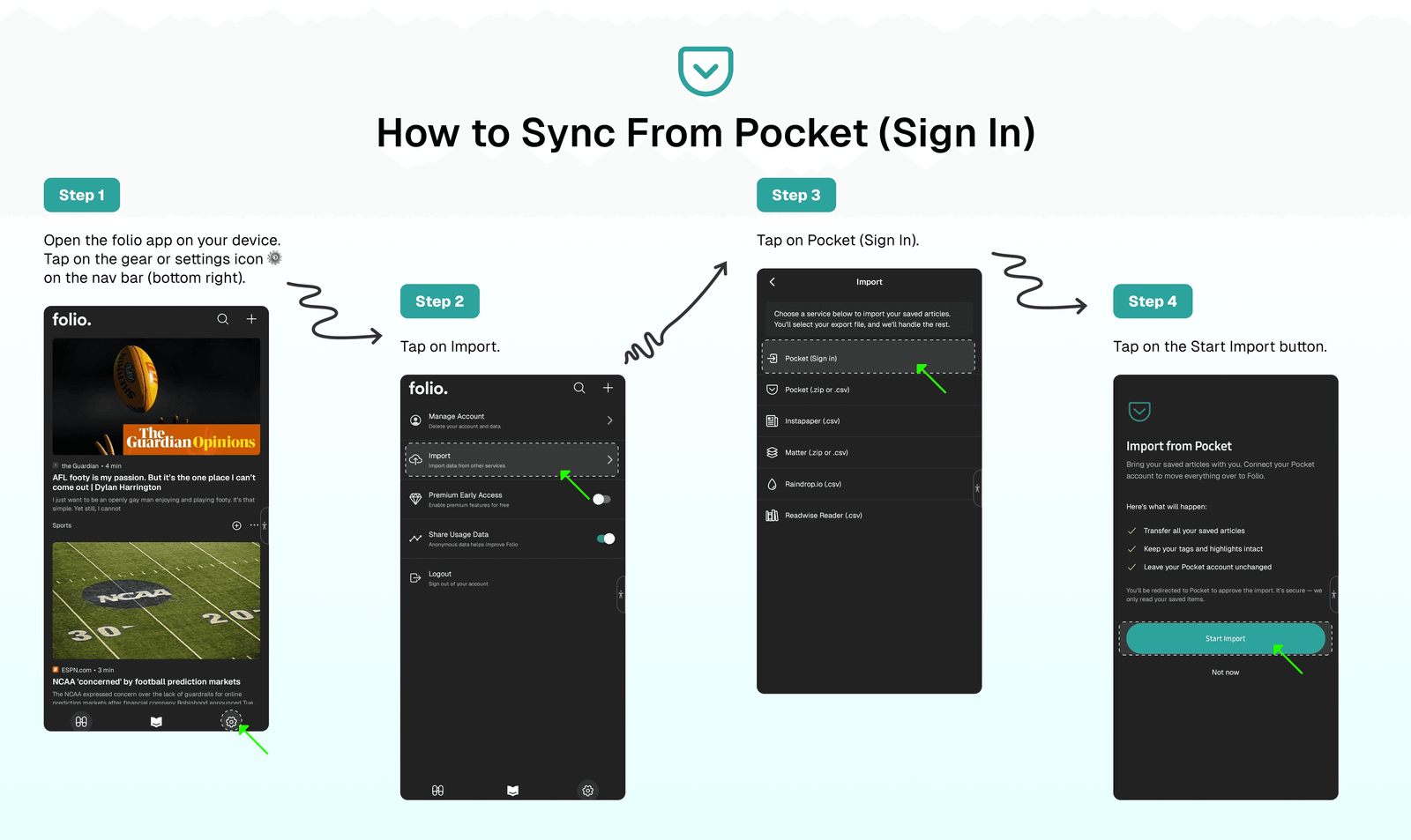
Sync all your saves from Pocket to Folio with just a single click by signing in to Pocket and allowing content to sync to Folio.
To do this: Click ⚙️ in the Bottom Nav Bar → Import → Pocket (Sign In) → Allow Sync.
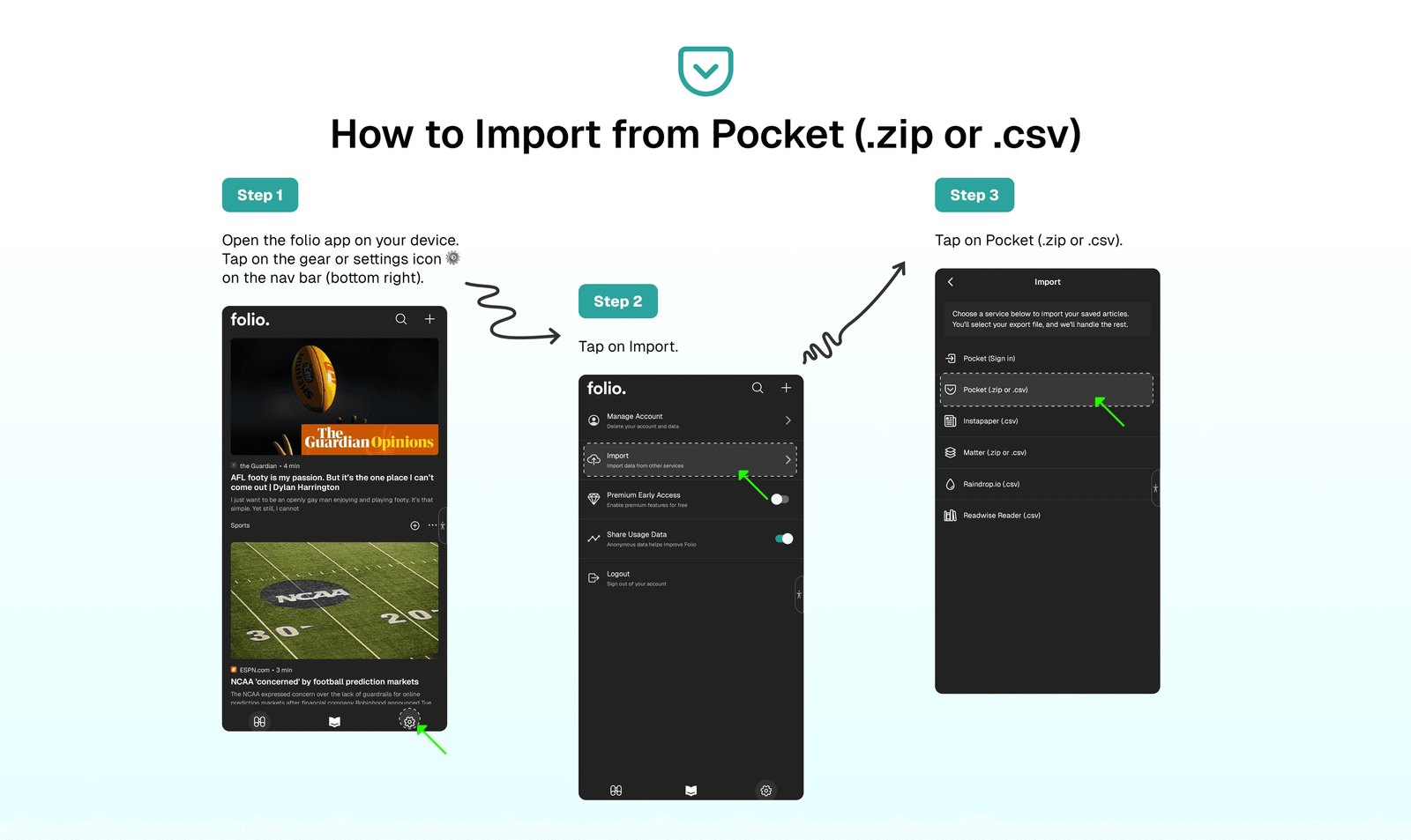
Import Pocket (.ZIP or .CSV)
Note
This is another way to import content from Pocket using a .ZIP or .CSV file
- Export Content From Pocket (.ZIP or .CSV): Go to Export → Click
Export CSV filebutton → Check your email for the attached(.CSV)file. - Upload Pocket (
.CSV) File to Folio: Click⚙️in the Bottom Nav Bar →Import→Pocket (.ZIP or .CSV)→ Upload Pocket File(.ZIP or .CSV).
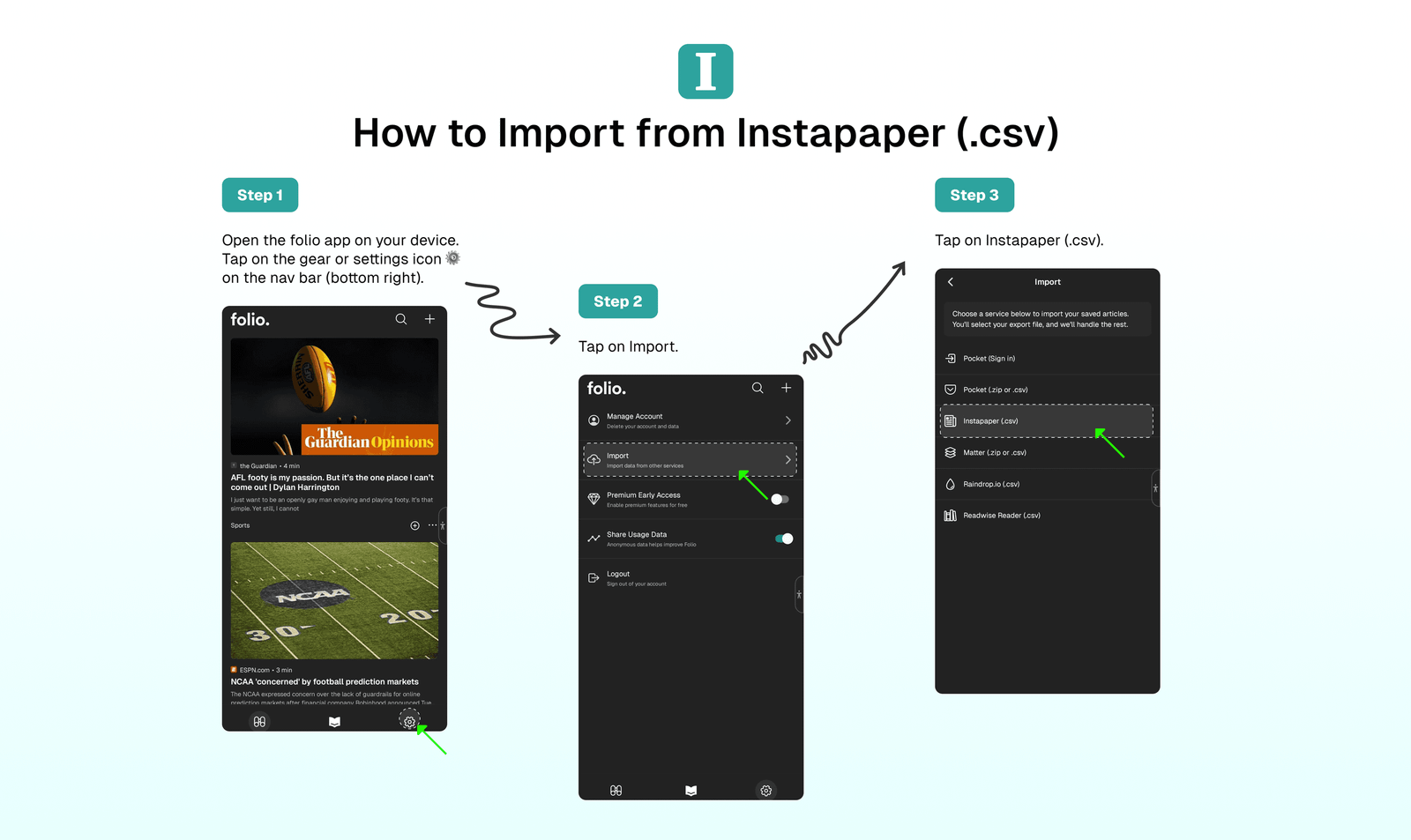
Import Instapaper (.CSV)
If you're using Instapaper, you can export all your content from the account settings, then upload the Instapaper .CSV file to Folio.
- Export Content From Instapaper (
.CSV): Go toSettingPage → ClickSend .CSV file to your email→ Check your email for the attached(.CSV)file. - Upload Instapaper (
.CSV) File to Folio: Click⚙️in the Bottom Nav Bar →Import→Instapaper(.CSV)→Upload Instapaper File (.CSV).
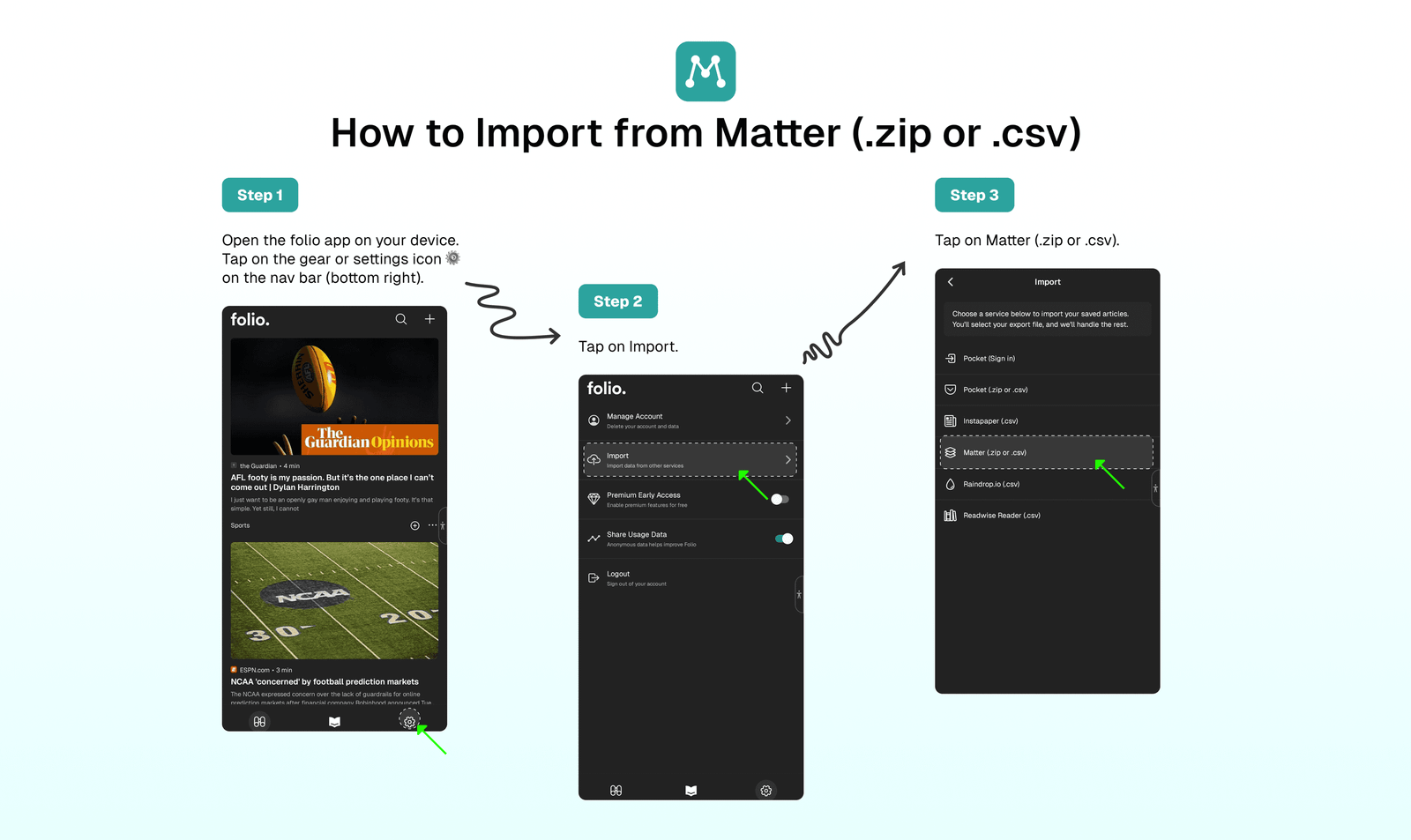
Import Matter (.ZIP or .CSV)
Using Matter? You can export all your content from the account settings, then upload the Matter .ZIP or .CSV file to Folio.
- Export Content From Matter (.ZIP or .CSV): Go to
⚙️ Settings→ ClickExportButton → Check your email for the attached(.CSV)file. - Upload Matter File to Folio: Click
⚙️in the Bottom Nav Bar →Import→Matter(.ZIP or .CSV)→Upload Matter File (.ZIP or .CSV).
Import Raindrop.io (.CSV)
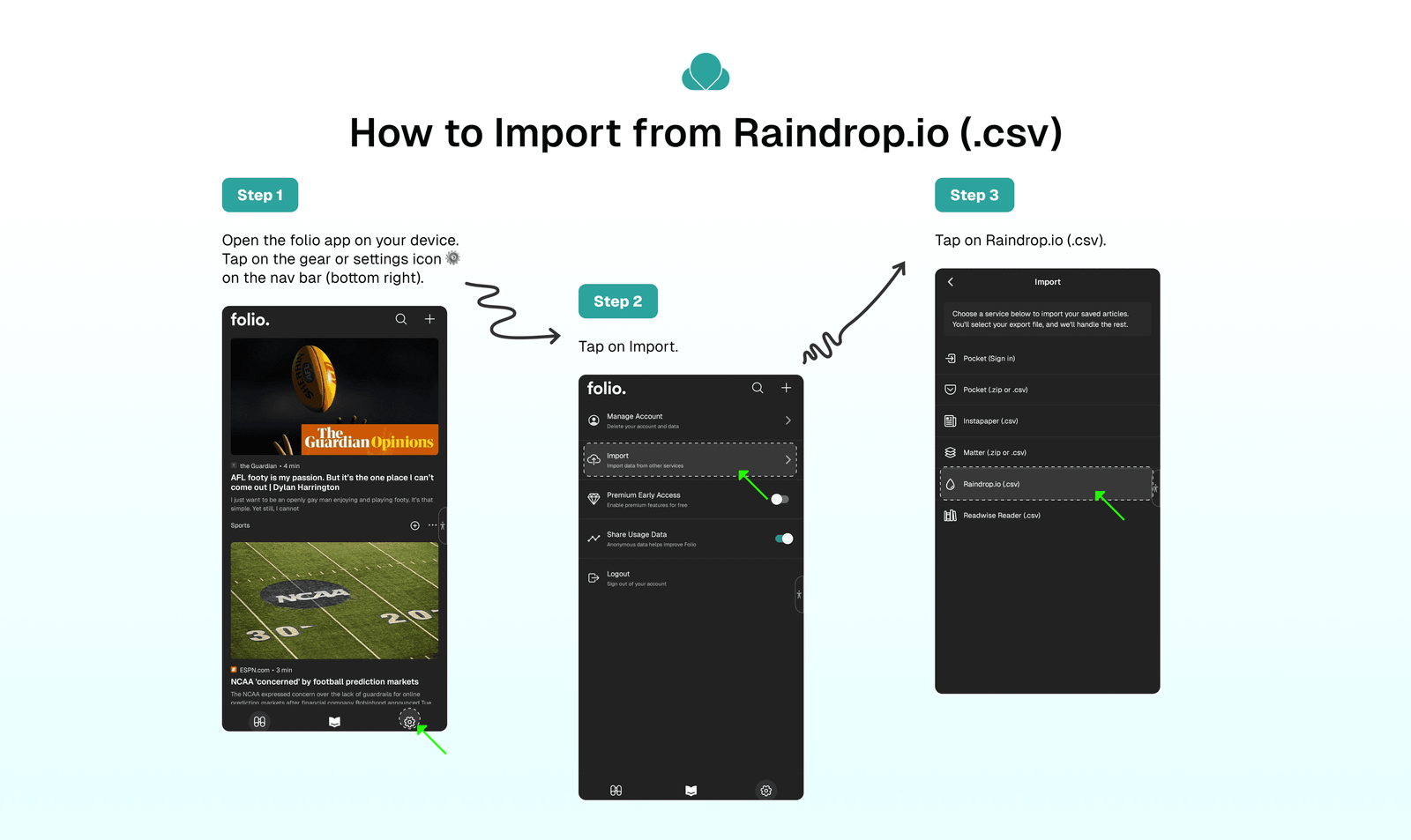
To import your saves from Raindrop.io, you can export your collections as a .CSV file and then upload it to Folio.
- Export Content From Raindrop.io (
.CSV): Go toSettings→ ClickExport as CSV→ Check your email for the attached(.CSV)file. - Upload Raindrop.io (
.CSV) File to Folio: Click⚙️in the Bottom Nav Bar →Import→Raindrop.io(.CSV)→Upload Raindrop.io File (.CSV).
Import Readwise Reader (.CSV)
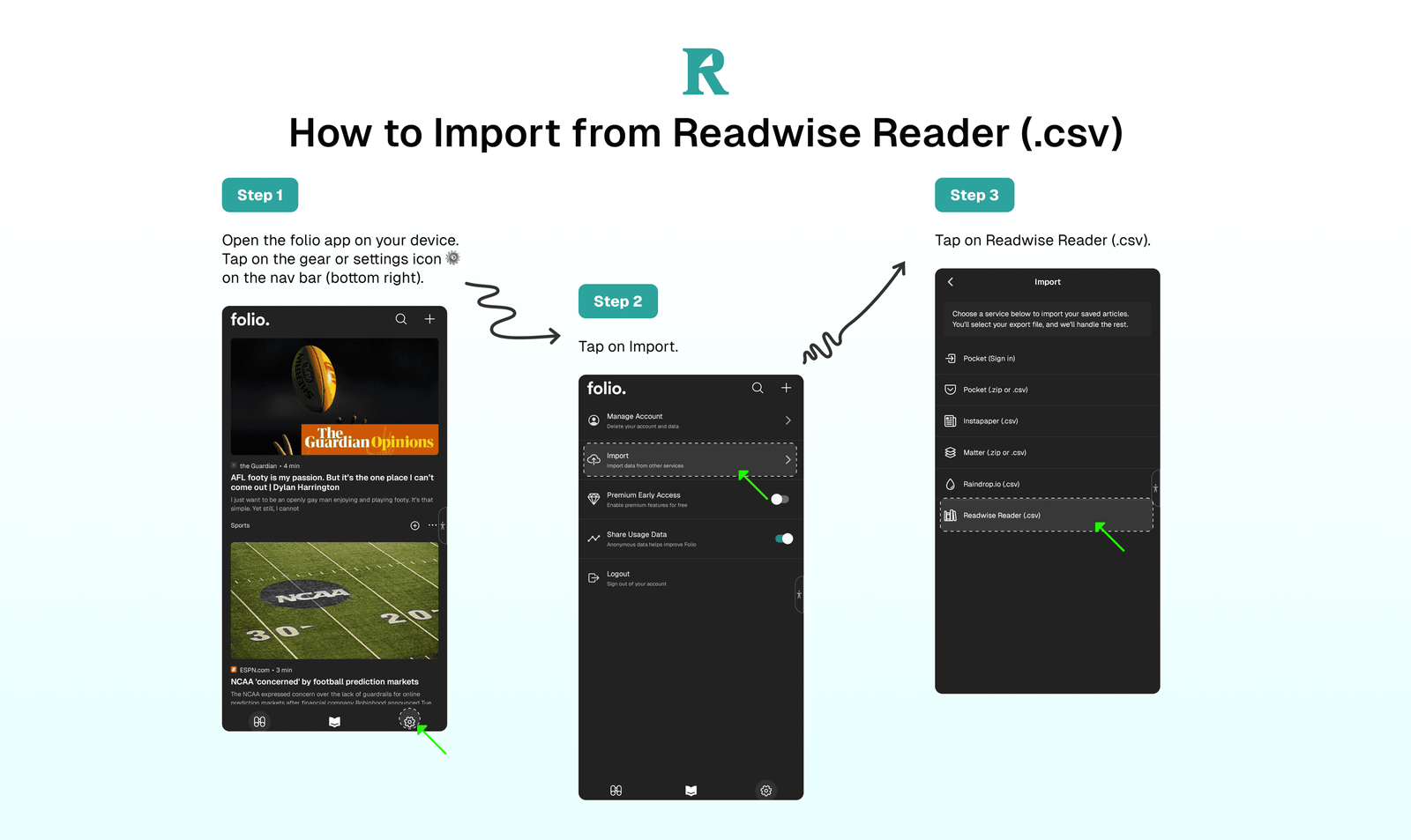
To import your saves from Readwise Reader, you can export your highlights as a .CSV file and then upload it to Folio.
- Export Content From Readwise Reader (
.CSV): Go toSettings→ ClickExport All Highlights→ Check your email for the attached(.CSV)file. - Upload Readwise Reader (
.CSV) File to Folio: Click⚙️in the Bottom Nav Bar →Import→Readwise Reader(.CSV)→Upload Readwise Reader File (.CSV).
⁉️ FAQs
Last updated on