🔍 Folio Discover
Save from Discover
Use the power of Folio Discover to explore the latest news and learn how to save articles to your reader.
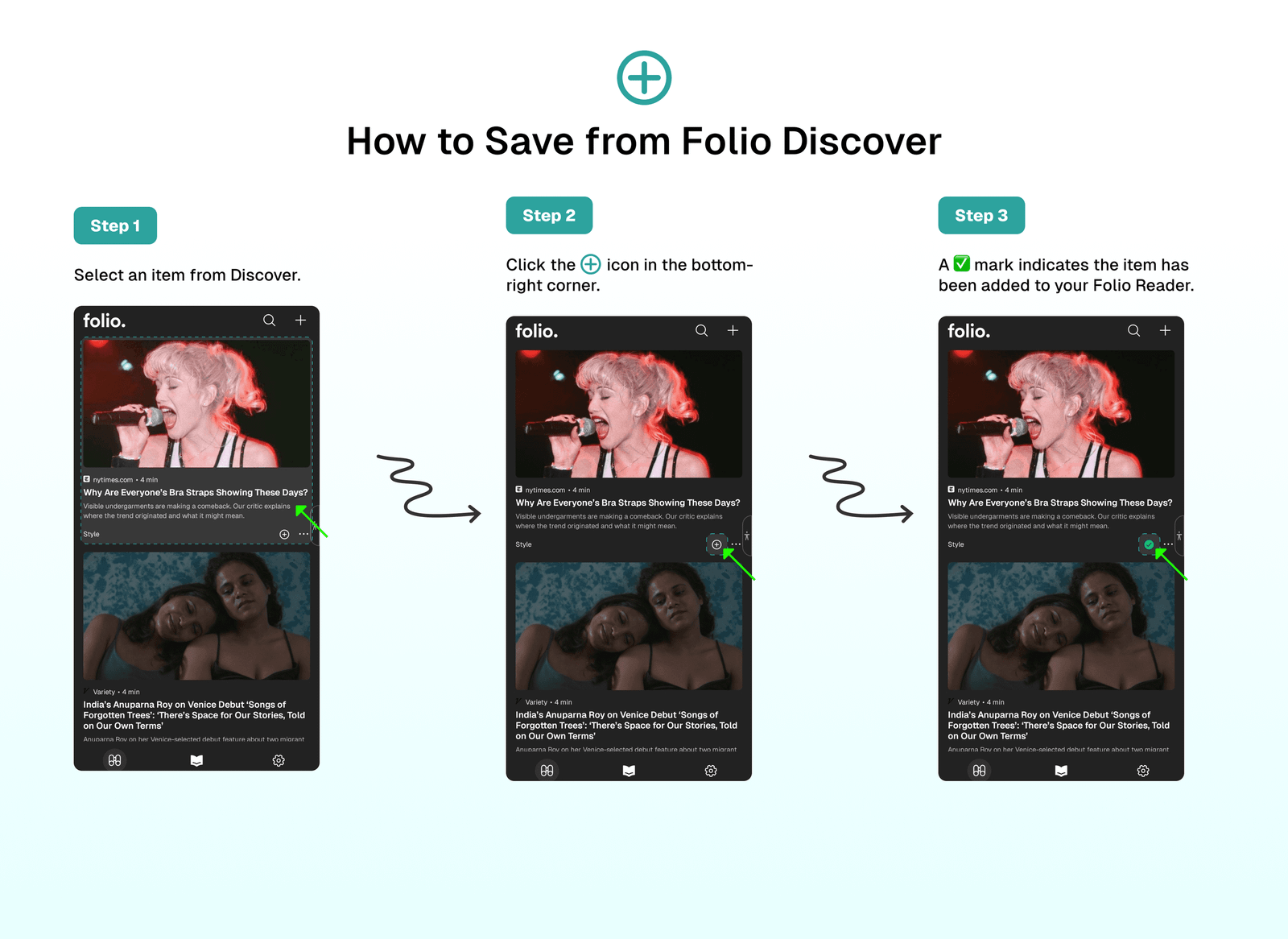
➕ How to Save from Folio Discover
Folio offers a straightforward process for saving content from Discover to your Reader:
- Select an item from Discover.
- Click the “➕” icon in the bottom-right corner.
- A ✅ mark indicates the item has been added to your Folio Reader.
- Enjoy reading 😍!
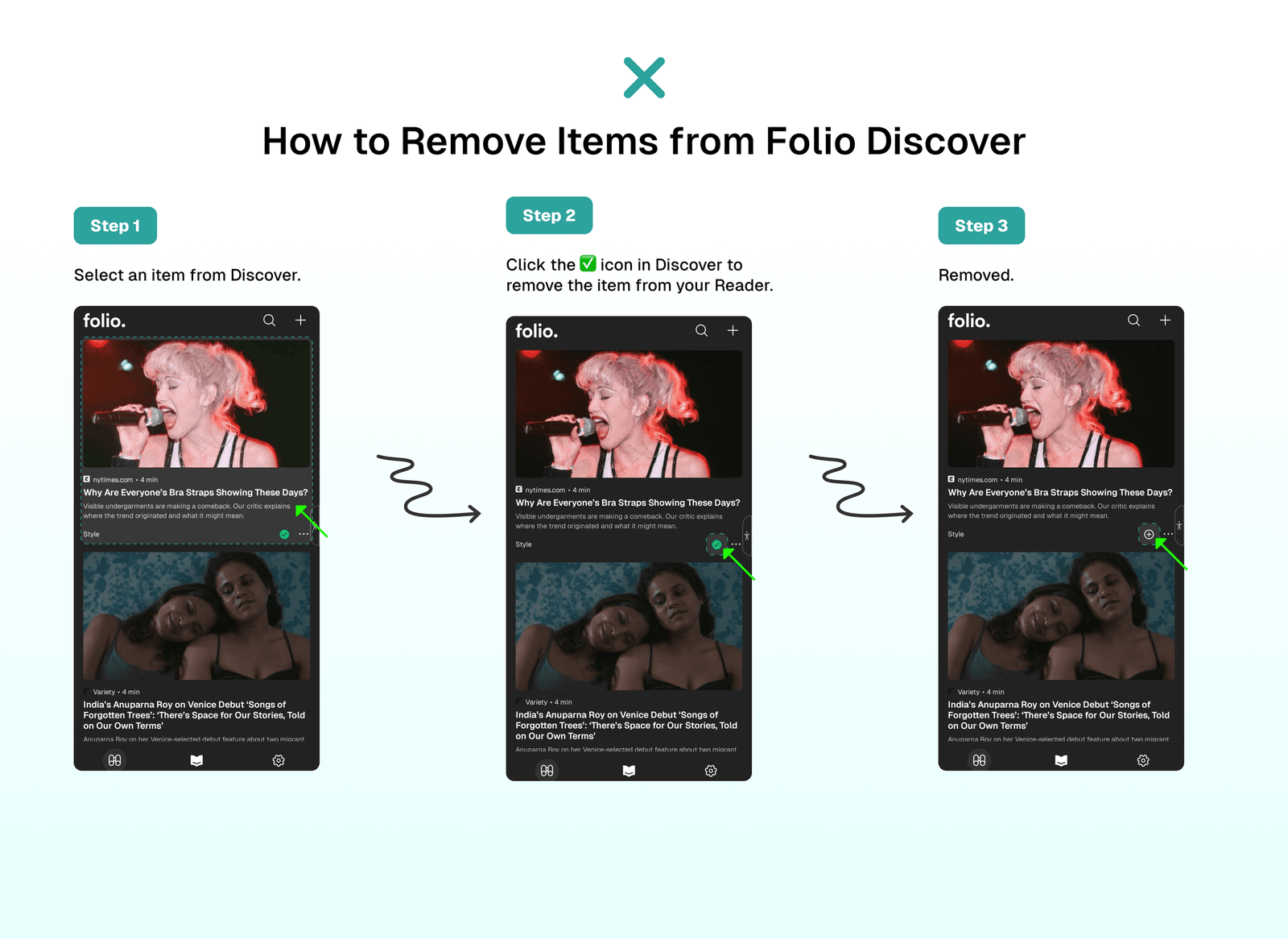
❌ How to Remove Items from Folio Discover
To remove an item from your Reader that you've previously added from Folio Discover:
- Select an item from Discover.
- Click the ✅ icon in Discover to remove the item from your Reader.
📣 Stay Updated with Folio Discover
Folio Discover is continuously updated with the latest news and articles. To ensure you have access to the most recent content:
- Open the Folio app.
- Navigate to the Discover section.
- Pull down to refresh the content.
- Explore and save new articles to your Reader regularly!
⁉️ FAQs
Last updated on